Table of Contents
- Does Removing The Hard Drive Erase Everything?
- Where Your Files Are Stored (And What Else Might Still Contain Data)
- Can Someone Recover My Data After I Remove The Drive?
- What To Do Before You Remove The Hard Drive
- How To Permanently Erase Data (Safe Options)
- If You’re Recycling The Computer: Safest Approach
- Common Questions
- Quick Takeaway: The Safest Way To Ensure Nothing Is Recoverable
- Fun Fact: Your PC Can Still “Start” Without A Hard Drive
- Conclusion
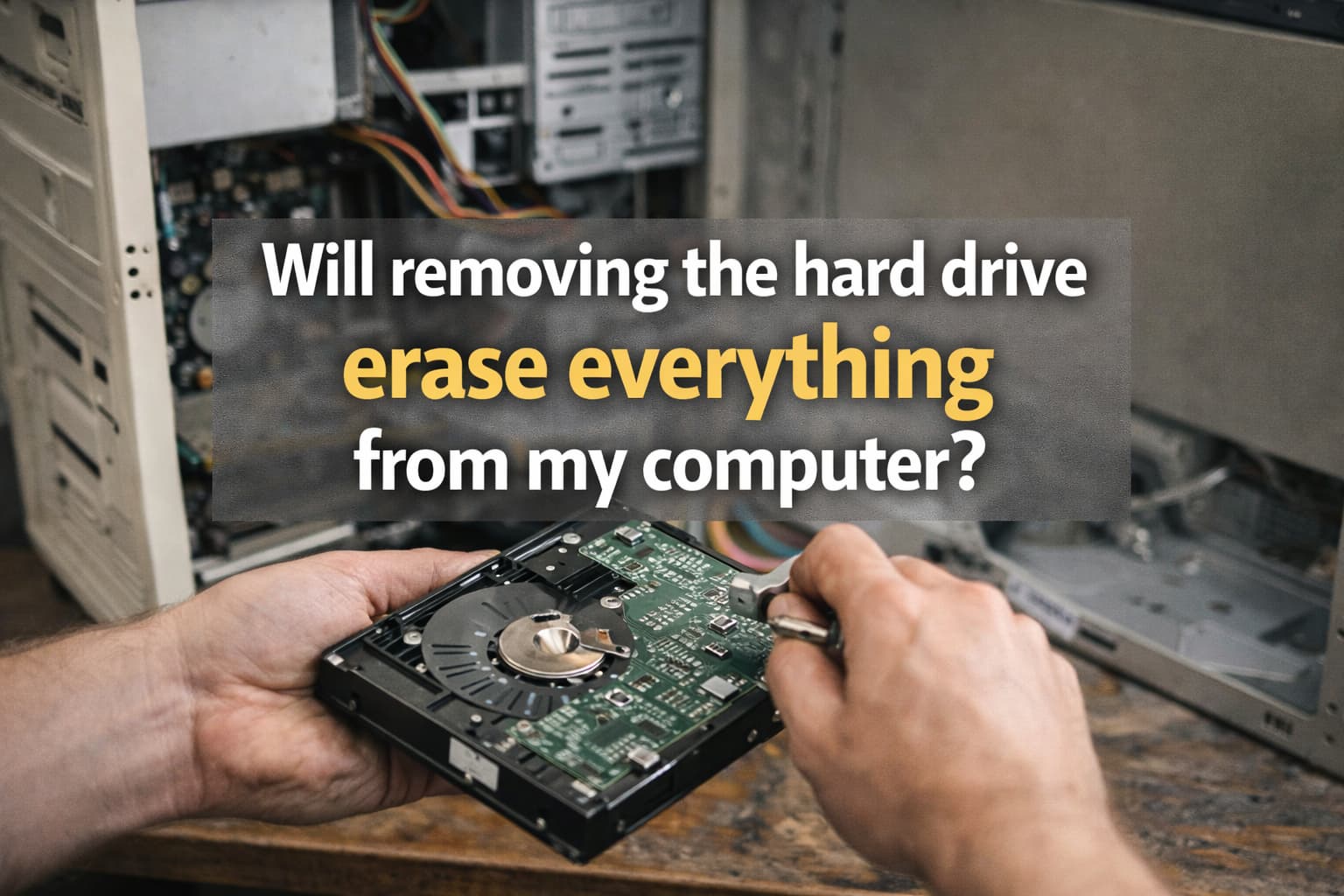
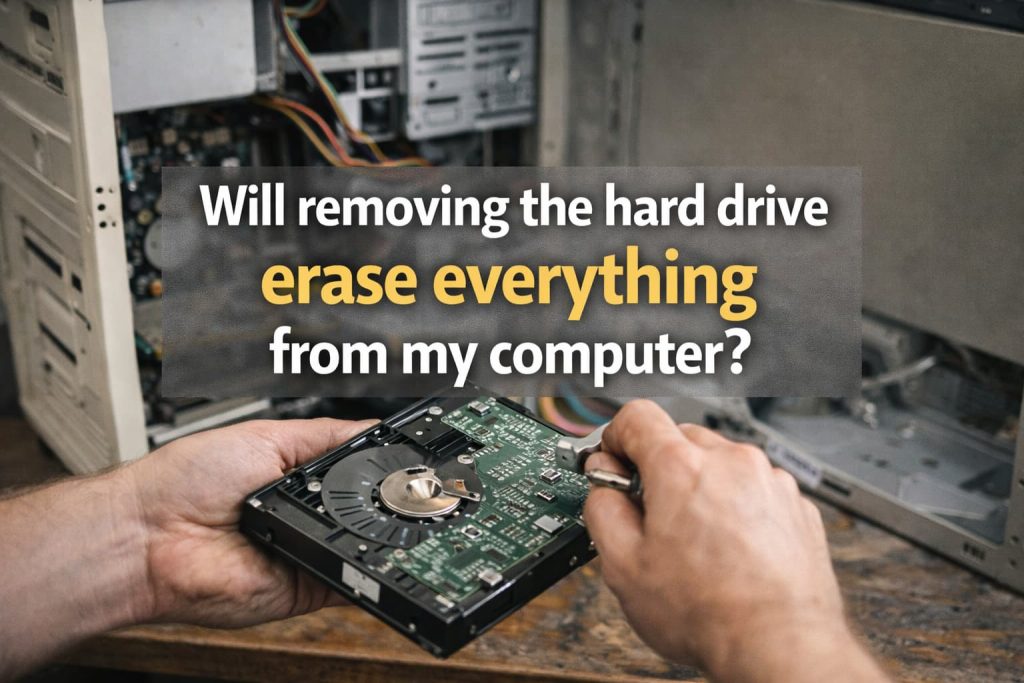
Removing the hard drive does not “erase” it. It simply removes the main storage that holds your files and, in most cases, your operating system. Your data remains on the drive and can still be recovered unless it is securely wiped or physically destroyed. The computer may not boot without a drive, but your information is not automatically deleted.
If you are selling, donating, repairing, recycling, or disposing of a PC or laptop, this distinction matters. Below is a practical, UK-focused guide to what removing a drive actually does, where data can still hide, and the safest steps to ensure nothing is recoverable.
Does Removing The Hard Drive Erase Everything?
What Removing The Drive Actually Does (And Doesn’t Do)
Taking out an HDD or SSD is best thought of as removing the filing cabinet, not shredding the files inside it.
- It does: Remove the primary storage device that contains most personal files, installed apps, and usually Windows or macOS.
- It does not: Delete, wipe, overwrite, or encrypt the contents of that drive.
- It often does: Make it harder to access your files on that computer, because the machine no longer has its usual storage attached.
If someone has the removed drive, they may be able to read it using another computer or an external enclosure, unless you have protected it properly.
Will The Computer Still Turn On Or Boot Without It?
In most cases, yes, the computer can still power on. What usually changes is the boot process.
- Power on: The machine may still show the manufacturer logo or the BIOS/UEFI screen.
- Boot into an operating system: Usually no, because Windows or macOS is typically installed on the internal drive.
- Boot from another device: Sometimes yes, for example, from a USB installer or a network boot, if enabled.
This is why people often confuse “it won’t boot” with “the data is gone”. They are separate issues.
Where Your Files Are Stored (And What Else Might Still Contain Data)
Hard Drive Vs SSD: What Changes For Data Removal
Both HDDs and SSDs store data even after removal. The difference is how they store it, and what that means for secure erasure.
- HDD (Hard Disk Drive): Uses spinning magnetic platters. Secure wiping by overwriting is generally effective when done correctly.
- SSD (Solid State Drive): Uses flash memory. Features like TRIM and wear levelling can make traditional “overwrite the whole drive” methods unreliable, so SSD-specific secure erase methods are preferred.
The key takeaway is the same, though: Removal is not erasure for either type.
Other Places Data Can Live: External Drives, SD Cards, Cloud Sync, Printers, Phones
Even if you remove the main drive, you may still have data stored elsewhere, including:
- External USB drives and portable SSDs: Often used for backups and photo libraries.
- SD cards and microSD cards: Common in laptops, cameras, and some tablets.
- Cloud-synced folders: OneDrive, iCloud Drive, Google Drive, and Dropbox can keep copies locally and in the cloud.
- Browsers and password managers: Saved passwords, autofill data, cookies, and sessions can persist.
- Email and messaging caches: Outlook local data files, offline mail, attachments, and chat history.
- Printers and scanners: Some models store recent print jobs or scanned documents.
- Phones and tablets used for tethering or backup: Copies of photos, documents, and synced app data can exist there, too.
Before disposal, it is worth checking for secondary storage and any accounts that may still be signed in.
Can Someone Recover My Data After I Remove The Drive?
Deleted Vs Wiped: Why “Removing” Isn’t The Same As Erasing
There are three actions people often mix up:
- Deleting: Removes references to files, allowing the system to reuse the space. The data may still be recoverable.
- Formatting or factory reset: Reinstalls or refreshes the operating system, but may not securely erase all previous data.
- Secure wiping or sanitisation: Uses methods intended to make data unrecoverable, either by proper overwriting, SSD secure erase, cryptographic erasure, or destruction.
A widely referenced technical standard is NIST SP 800-88 (Guidelines for Media Sanitization), which describes approaches such as clearing, purging, and destroying storage media. You do not need to be a forensic expert to benefit from the principle: Use a method that matches the device and the sensitivity of the data.
Common Recovery Scenarios (Resale, Donation, Recycling, Repairs)
Without going into “how to recover data” steps, these are risk scenarios people commonly overlook:
- Resale or donation: The next owner may connect the drive to another machine or attempt recovery if the device was only reset.
- Repairs: A third party may access storage during diagnostics, especially if you hand over the device intact.
- Recycling: If the drive is not wiped or destroyed within a controlled process, you take on unnecessary exposure risk.
- “Broken” devices: A laptop that will not power on can still have perfectly readable storage.
For UK individuals and especially businesses, remember that personal data has handling responsibilities. The Information Commissioner’s Office (ICO) UK GDPR guidance is the best place to understand your obligations.
What To Do Before You Remove The Hard Drive
Back Up Important Data (Quick Checklist)
Before you remove, wipe, or destroy anything, make sure you have what you need. Use this quick checklist:
- Documents and photos: Copy key folders, including Desktop, Documents, Pictures, and Downloads.
- Browser data: Export bookmarks, and save important passwords only to a trusted password manager.
- Email and contacts: Confirm mail is syncing properly, or export archives if needed.
- 2FA recovery codes: Store backup codes securely before wiping devices used for authentication.
- Licence keys and installers: Note down software licence details where applicable.
- Verify the backup: Open a few files from the backup to confirm it worked.
Sign Out And Deauthorise Accounts (Microsoft, Apple, Google, Adobe, Etc.)
Signing out protects you and avoids activation issues for the next owner. Consider:
- Microsoft account: Sign out of Windows, OneDrive, and Microsoft Store apps.
- Apple ID (Macs): Sign out of iCloud, iMessage, and disable Find My where relevant.
- Google: Sign out of Chrome profiles and remove saved sync data from the device.
- Adobe and other licensed software: Deactivate or sign out to free up activations.
For Windows users, Microsoft’s guidance on reset options is helpful. However, remember that a reset is not always the same as secure erasure: See Microsoft Support: Reset or reinstall Windows.
How To Permanently Erase Data (Safe Options)
If your goal is to ensure data cannot be recovered, choose a method that fits the drive type and how sensitive the information is. The National Cyber Security Centre (NCSC) device security guidance is a useful baseline for reducing data exposure.
Option 1: Full-Disk Encryption Plus Factory Reset (Good Baseline)
For many people, the most practical approach is simple:
- Turn on full-disk encryption: BitLocker (Windows) or FileVault (macOS).
- Confirm encryption is complete: Do not assume it happens instantly.
- Then factory reset: Use the built-in reset or erase process and remove personal files if prompted.
This works well because even if remnants remain, they should be unreadable without the encryption keys. For organisations, this “crypto-erase” approach is widely used when set up correctly.
Option 2: Secure Wipe For HDDs (What It Means And When To Use It)
If you have a traditional HDD and plan to reuse or sell it, a secure wipe can be a good option. In plain English, this means writing new data across the drive so old data cannot realistically be recovered.
- When it suits: HDDs being reused, resold, or returned at end of lease.
- What to watch: Use reputable wiping tools and let the process finish. Interruptions can leave data behind.
- Verification: Choose tools that provide a wipe report or verification step.
Businesses often prefer professional sanitisation with evidence. If you need proof, Green Retech Recycling can advise on secure handling and documentation, see how to be sure data is securely wiped.
Option 3: SSD Secure Erase (Why It’s Different)
SSDs behave differently because of how they manage memory internally. TRIM and wear levelling can mean that simple overwriting does not reliably touch every cell that previously held data.
- Best-fit methods: Manufacturer secure erase tools, built-in “secure erase” features, or encryption-based approaches.
- Common pitfall: Assuming repeated overwrites are always better. On SSDs, it can be ineffective and adds wear.
If you are unsure whether your device uses an SSD, or it has soldered storage, a specialist recycler can help you choose a safe route.
Option 4: Physical Destruction (When It’s Appropriate)
Physical destruction is the most definitive option when:
- Data is highly sensitive: Financial records, HR files, client data, medical information, and regulated datasets.
- The drive is faulty: You cannot reliably wipe it because it will not stay connected or be detected.
- You need strong assurance: You want to remove uncertainty about recoverability.
Destruction should be done safely and responsibly, with proper recycling of materials and, for businesses, a documented chain of custody. If you want formal proof, see data destruction certificates.
If You’re Recycling The Computer: Safest Approach
Should You Keep The Drive Or Recycle It Too?
Use this mini decision guide:
- Keep the drive: Best if you want maximum control, or if you are donating the computer and do not want to risk your personal data.
- Wipe the drive and recycle the whole device: Best if the device will be reused and you can complete a suitable wipe, or encryption plus reset.
- Recycle with professional sanitisation or destruction: Best for business devices, highly sensitive data, or if you want evidence and a documented process.
For UK disposal, make sure your route is compliant with WEEE rules. GOV.UK explains your options here: Waste Electrical and Electronic Equipment (WEEE) guidance.
If you are wondering what happens behind the scenes, Green Retech Recycling explains the process in what happens to computers and laptops after collection and covers common concerns in what happens to data on my old computer or laptop.
What Documentation To Ask For (Chain Of Custody, Certificates)
Documentation matters for peace of mind, and for businesses, it supports compliance and audits. Ask your recycler for:
- Chain of custody: A record showing where devices went and who handled them.
- Certificate of data erasure or destruction: Evidence that the drive was sanitised to an agreed standard, or physically destroyed.
- Asset reporting: Serial-number reporting for business IT estates.
Green Retech Recycling covers common questions about secure processes in is data removed before recycling? and GDPR compliance.
Common Questions
What About Laptops With Soldered Storage?
Some thin laptops and tablets have SSD storage soldered to the motherboard, which means you cannot remove it. In that case, your best options are usually:
- Enable full-disk encryption: Then perform a factory reset.
- Use the manufacturer’s erase process: Where available.
- Professional recycling with documented sanitisation: Especially for business devices or sensitive data.
Will Removing The Drive Remove Windows And My Licence?
Removing the drive usually removes the installed copy of Windows from that computer, because Windows lives on the drive. However, the licence is often separate.
- Digital licence tied to the device: Many Windows PCs store an activation entitlement linked to the motherboard.
- Microsoft account linked: Some licences are associated with your Microsoft account.
- Business volume licensing: May have different rules and transfer rights.
Practical point: If you sell or donate the PC without a drive, it may need a new drive and an operating system installed to be usable.
Is Formatting Enough?
Usually, no. A quick format mainly recreates the file system structure, and the data may remain recoverable. Even a factory reset may not meet a “nothing recoverable” standard in every case.
If you need strong assurance, prefer:
- Encryption plus reset: A realistic baseline for many users.
- An appropriate sanitisation method: HDD overwrite or SSD secure erase.
- Physical destruction: For maximum certainty, or for faulty drives.
What If The PC Has Two Drives?
Many desktops and some laptops have more than one drive, for example, an SSD for Windows and an HDD for files. If you only remove one drive, problems can remain.
- Data can still be present: The second drive may hold documents, photos, downloads, and application data.
- Recovery partitions may exist: Some systems store recovery tools on a separate partition or drive.
Check Disk Management (Windows) or Disk Utility (macOS) to confirm what storage is present before disposal.
Quick Takeaway: The Safest Way To Ensure Nothing Is Recoverable
If you want the safest practical approach, use this simple checklist:
- Back up what you need: Verify the backup opens correctly.
- Sign out and deauthorise accounts: Microsoft, Apple, Google, Adobe, and any work accounts.
- Encrypt the drive: BitLocker or FileVault, then confirm encryption is complete.
- Reset or erase the device: Use the built-in process.
- For highly sensitive data or faulty drives: Choose professional sanitisation or physical destruction with documentation.
If you are recycling, Green Retech Recycling can help you choose between secure wiping and destruction, and explain what proof you should receive. Start with the safest way to dispose of old IT equipment.
Fun Fact: Your PC Can Still “Start” Without A Hard Drive
A computer can still power on and show a BIOS/UEFI screen even with no drive installed, because that start-up firmware is stored on a chip on the motherboard, not on the hard drive. Your files, however, live on the drive (or other storage), which is why removal does not equal erasure.
Conclusion
Removing a hard drive can stop a computer from booting, but it does not delete what is on the drive. If you want to prevent data recovery, you need encryption plus a reset, a proper sanitisation method suited to HDDs or SSDs, or physical destruction for the highest level of assurance.
When you are ready to dispose of a device responsibly, Green Retech Recycling can guide you through secure data handling and compliant recycling. For extra reassurance, explore environmentally friendly computer and laptop recycling and how electronic waste is recycled.