Table of Contents
- Quick Answer: Is A 10-Year-Old Laptop Still Worth Keeping?
- Key Factors That Decide Whether To Keep Or Replace
- Security And Software Support: The Biggest Deal-Breaker
- Cost Check: Upgrade, Repair Or Replace?
- Keep It For These Scenarios (When It Still Makes Sense)
- Replace It If You Notice These Red Flags
- If You Don’t Keep It: Sell, Donate, Refurbish Or Recycle?
- How To Dispose Of An Old Laptop Safely (Data First)
- Environmental Angle: Is Keeping It Greener Than Replacing?
- Decision Checklist (Printable): Keep, Upgrade, Or Recycle
- FAQs
- Transparency: What Happens After Collection With Green Retech Recycling
- Fun Fact: Factory Reset Often Is Not True Data Deletion
- Conclusion: Keep It If It’s Secure And Fit For Purpose, Otherwise Recycle It Properly
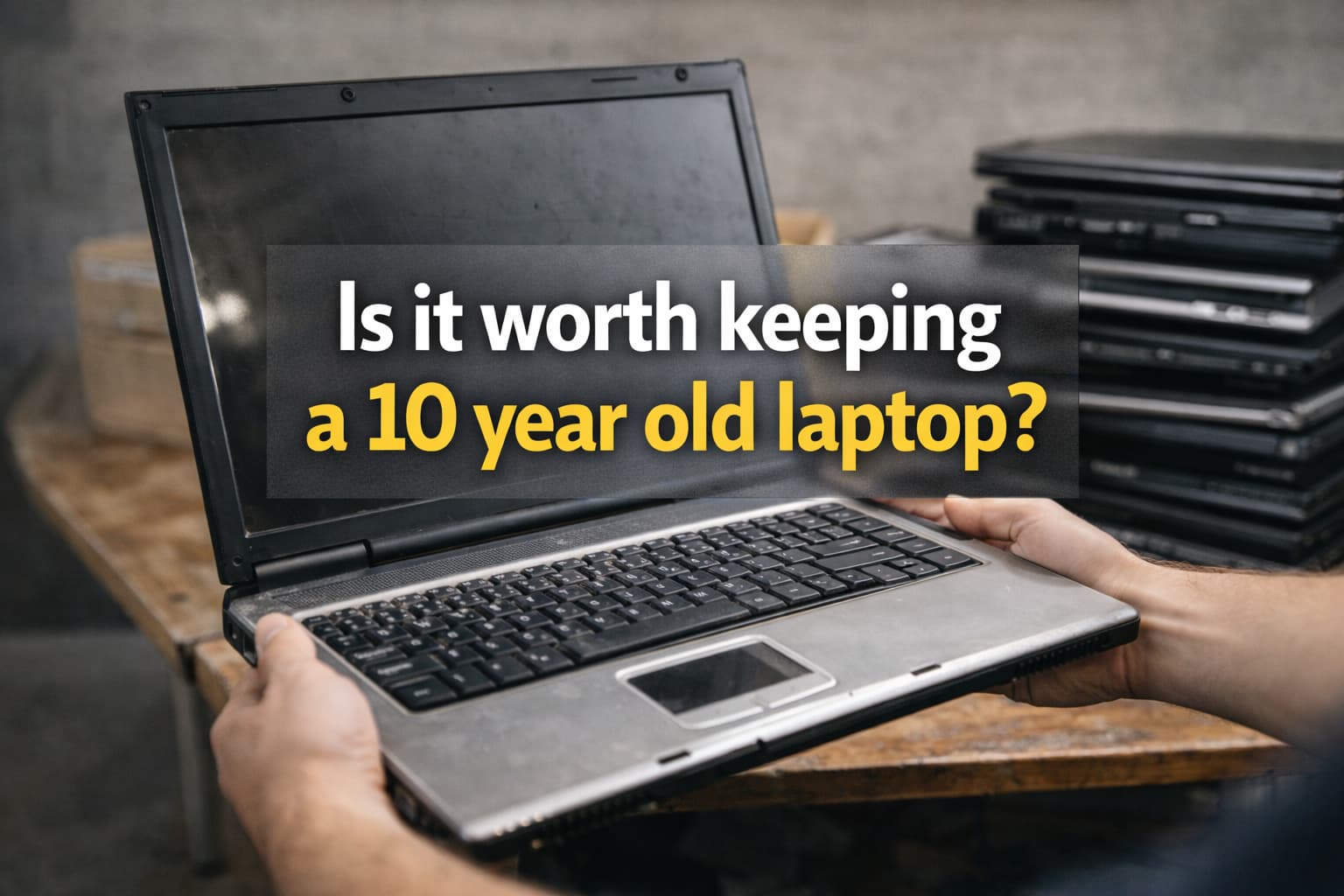
Keeping a 10-year-old laptop can be worth it if it still meets your needs, can be secured with supported software, and is economical to upgrade, often with an SSD and more RAM. If it cannot run a supported operating system, struggles with basic tasks, or repairs cost close to replacement, replace it and recycle it responsibly after wiping your data.
A decade is a long time in laptop years, but “old” does not automatically mean “useless”. Many 10-year-old machines can still handle email, web browsing, documents, and streaming if you set them up sensibly and keep them secure. The real question is whether your laptop is still safe, reliable, and cost-effective for what you need today.
This guide breaks the decision down into practical checks, upgrade options, and a simple keep vs replace checklist. It also covers what to do if you do not keep it, including UK WEEE-compliant disposal and secure data wiping.
Quick Answer: Is A 10-Year-Old Laptop Still Worth Keeping?
It is usually worth keeping a 10-year-old laptop only if it meets all three conditions:
- It Can Run Supported Software: It receives security updates for the operating system and a modern browser.
- It Meets Your Everyday Performance Needs: It handles your typical tasks without constant freezing, crashing, or overheating.
- It Is Economical To Fix Or Upgrade: Common upgrades, such as an SSD and extra RAM, cost far less than replacing the laptop.
It is usually time to replace it, or repurpose it offline, if it cannot run a supported operating system, is unreliable, or needs expensive repairs. If replacement is the best option, plan for secure data handling and responsible recycling through a WEEE-compliant route.
Key Factors That Decide Whether To Keep Or Replace
What You Use It For (Email, Browsing, Office Vs Photo/Video Editing, Gaming)
Your use case is the quickest way to decide whether keeping an old laptop makes sense:
- Basic Tasks: Email, web browsing, Office documents, streaming, and light admin are often fine with the right upgrades.
- Video Calls and Remote Work: Older CPUs, weak Wi-Fi, limited RAM, and outdated webcams can struggle with modern conferencing tools.
- Creative Work: Photo and video editing, music production, and design software can feel slow on older hardware.
- Gaming: A 10-year-old laptop is unlikely to handle modern games well, especially without a dedicated, supported GPU.
If your laptop is mainly for basic tasks, upgrading may offer better value than buying new. If you need dependable performance for work or heavier applications, replacement, often with a refurbished business-grade model, is usually the smarter choice.
Performance: CPU Limits, RAM, Storage Type (HDD Vs SSD)
Most “my laptop is slow” complaints on older devices come down to two bottlenecks:
- Storage (HDD Vs SSD): Traditional hard drives (HDDs) are far slower than solid-state drives (SSDs) and can make a laptop feel painful to use.
- RAM: Too little memory forces the system to use the drive as swap space, which causes stutter and long loading times.
CPU age matters too, but it is often not the first thing to fix. In many 10-year-old laptops, an SSD upgrade and a RAM increase deliver the biggest real-world improvement for the lowest cost.
Quick diagnostic clues:
- Slow Boot And Long App Loading: Often, an HDD or failing storage.
- Freezing With Multiple Tabs Open: Often insufficient RAM.
- Lag In Video Calls Or HD Video: Often CPU limits, thermal throttling, or weak Wi-Fi.
Battery Health, Heat, Fan Noise And General Reliability
Reliability is where older laptops often lose the argument. Look for:
- Battery Life Collapse: If it only lasts 15 to 60 minutes, you are effectively tethered to the mains.
- Overheating and Loud Fans: Dust build-up, dried thermal paste, or failing fans can cause throttling and crashes.
- Random Shutdowns Or Blue Screens: These can point to overheating, storage faults, or motherboard problems.
Safety warning: If you notice a swollen battery, a bulging case, or unusual smells, stop using the laptop and seek professional advice. Store it somewhere cool and non-flammable until it can be handled safely.
Screen, Keyboard, Ports And Wi-Fi/Bluetooth Standards
Even if the laptop is “fast enough”, older hardware can be awkward in a modern setup:
- Display Quality: Dim screens or low resolution can be tiring for work and study.
- Ports: You may lack USB-C, newer HDMI standards, or a reliable card reader.
- Wi-Fi and Bluetooth: Older standards can mean slower speeds and poorer stability on busy networks.
If your laptop cannot connect reliably, cannot drive external monitors properly, or lacks ports you depend on, replacement may be more practical than workarounds.
Security And Software Support: The Biggest Deal-Breaker
Performance is frustrating, but security is the true deal-breaker. Unsupported software increases the risk of malware, data theft, and account compromise. For safer online habits, the UK’s National Cyber Security Centre guidance is a strong baseline: NCSC top tips for staying secure online.
Operating System Support And What ‘End Of Support’ Means
When an operating system reaches “end of support”, it usually stops receiving security patches. That means newly discovered vulnerabilities may never be fixed, even if you use antivirus software.
Key point for decision-making:
- Supported OS: Lower risk and better app compatibility.
- Unsupported OS: Higher risk, and many modern applications and browsers gradually stop working properly.
Support windows change over time, so always verify your exact version and update status. For a practical overview of what the Windows 10 timeline means, see when Windows 10 is reaching end of life.
Windows 10 End Of Support And What It Means For Older Laptops
Many 10-year-old laptops run Windows 10 today, but older machines may not meet Windows 11 requirements. If Windows 10 stops receiving security updates, you have three realistic paths:
- Upgrade To A Supported OS: Only if your device genuinely supports it.
- Keep The Laptop For Offline Or Low-Risk Tasks: Avoid sensitive logins, banking, and important work accounts.
- Replace The Laptop: Often the safest and least stressful option.
If you are asking, “Can I keep using Windows 10 after 2025?”, read can I keep using Windows 10 after 2025 for a plain-English breakdown.
Browser And App Support: When Everyday Websites Stop Working Properly
Even if the laptop still turns on, everyday usability can drop when browsers or apps stop supporting older operating systems. Common symptoms include:
- Websites Display Incorrectly: Newer web standards may not render properly.
- Login Issues: Banking, government, and work platforms may require newer security features.
- Apps Refuse To Install: Modern versions may require a newer OS.
If your browser can no longer update, that is a serious warning sign. Your laptop may still be fine for offline use, but it is a poor choice for day-to-day internet activity.
If You Must Keep It: Safer Ways To Use An Older Laptop
If you need to keep a 10-year-old laptop running for a little longer, reduce risk with a least-exposure approach:
- Keep It Updated: Apply all available OS, browser, and firmware updates.
- Use A Standard User Account: Avoid using an admin account for everyday tasks.
- Limit Sensitive Activity: Avoid online banking, storing card details, or using it for critical work systems if the OS is unsupported.
- Use Strong Authentication: Turn on multi-factor authentication for key accounts.
- Back Up Regularly: Old storage can fail without warning.
For organisations, the stakes are higher because personal and business data must be handled lawfully. The ICO’s guidance on data protection is a helpful reference point: ICO UK GDPR guidance and resources.
Cost Check: Upgrade, Repair Or Replace?
Use a simple rule: If repairs and upgrades approach a large share of the cost of a better refurbished or new laptop, replacement is usually better value. Also factor in downtime and risk, not just parts.
High-Impact, Low-Cost Upgrades (SSD And RAM)
For many 10-year-old laptops, these are the upgrades that make the biggest difference:
- Replace HDD with SSD: The single biggest speed boost for boot times and general responsiveness.
- Add More RAM: Helps with multitasking, browser tabs, and office apps.
Upgrades that are often not worth it on a decade-old machine:
- CPU Upgrades: Usually impractical or impossible in laptops, and poor value even when possible.
- Major Motherboard Repairs: High cost with uncertain long-term reliability.
If you are unsure whether your laptop can accept an SSD or extra RAM, check the model specifications or ask a local repair shop for a quick assessment.
Common Repairs And Typical Costs (Battery, Charger, Keyboard, Screen)
These issues are common at the 8 to 12 year mark:
- Battery Replacement: Worth it if the laptop is otherwise healthy and you need portability.
- Charger Replacement: Often inexpensive, but buy safe, reputable replacements.
- Keyboard Or Trackpad Issues: Can be repairable, but labour costs add up.
- Screen Replacement: Often not worth it unless the laptop is a higher-end model.
Always treat battery swelling or overheating as a stop-now safety issue, not something to ignore.
Hidden Costs: Time, Downtime, And Risks From Insecure Devices
Old laptops can be deceptively expensive in ways that do not show on a receipt:
- Your Time: Waiting for updates, slow start-up, and troubleshooting.
- Downtime: Missed deadlines, interrupted schoolwork, or disrupted meetings.
- Security Risk: The cost of a compromised account or malware clean-up can exceed the cost of replacement.
If you use your laptop for income-generating work, reliability and security often justify replacing it sooner.
Keep It For These Scenarios (When It Still Makes Sense)
As A Backup Laptop Or Travel Device
A 10-year-old laptop can be useful as a spare for emergencies, travel, or occasional tasks. If you do this:
- Keep It Updated: Apply all available security patches.
- Do Not Store Sensitive Data Permanently: Treat it as disposable if it is lost or stolen.
For Children’s Homework And Basic Learning
If it can run a supported browser and basic office tools, a decade-old laptop may still cover:
- Web-Based Homework Platforms: Provided the browser still updates.
- Documents and Presentations: For primary and secondary school needs.
Consider setting up separate user accounts and simple parental controls, and make sure automatic updates are enabled.
As A Media Machine Or Light Home-Office Device
With an SSD and enough RAM, many older laptops handle:
- Streaming and Music: For everyday entertainment.
- Light Admin: Email, printing, scanning, and household paperwork.
Offline/One-Purpose Use (E.g., Legacy Software, Printing)
If you rely on legacy software or older peripherals, an old laptop can make sense as an offline station. Best practices:
- Keep It Offline Where Possible: Reduce exposure if the OS is unsupported.
- Use It For One Job Only: For example, running legacy software or acting as a print server.
Replace It If You Notice These Red Flags
Can’t Run A Supported Operating System Or Receives No Security Updates
If your laptop cannot run a supported OS and your browser cannot update, that is usually the clearest replace signal. Continued online use becomes higher risk, especially for banking, shopping, and work logins.
Frequent Crashes, Overheating, Swollen Battery, Or Failing Storage
Replace it, and recycle it responsibly, if you see:
- Repeated Crashes or Boot Failures: Can indicate failing storage or deeper hardware faults.
- Overheating and Thermal Shutdowns: Especially if cleaning does not help.
- Clicking HDD or Corrupted Files: A strong sign of imminent drive failure.
- Swollen Battery: An immediate safety concern.
Not Compatible With Modern Work Requirements (Video Calls, Security Tools)
Modern work and education often require:
- Stable Video Conferencing: With acceptable camera and microphone performance.
- Security Tools: Such as updated browsers, endpoint security, and sometimes device encryption or VPN clients.
If the laptop cannot meet these basics reliably, replacement is usually the least painful option.
Repair Costs Approach The Price Of A Better Refurbished Or New Device
If you are stacking multiple repairs, for example, a battery plus a screen plus storage, costs rise quickly. In that situation, consider a refurbished laptop with a warranty rather than spending more money on a machine nearing the end of its practical life.
If You Don’t Keep It: Sell, Donate, Refurbish Or Recycle?
When Selling Makes Sense (And What Affects Value)
Selling can make sense if the laptop is:
- Fully Working: No major faults, stable performance.
- Decent Specifications For Its Age: SSD, 8GB plus RAM, good screen, good battery.
- A Desirable Brand or Business Model: Some older business laptops hold value better.
If you want to compare selling vs recycling routes, see can I sell my old laptop or computer instead of recycling it.
Donation Considerations And Who Can Use Older Machines
Donation works best when the device is still safe and usable. Before donating:
- Confirm It Can Run Supported Software: A donated laptop that cannot update creates a problem for the recipient.
- Wipe Data Properly: Do not rely on a simple reset alone.
- Include The Charger: And any essential accessories.
Community groups, charities, and refurbishment programmes may accept older laptops, but requirements vary. If the laptop is too old for secure everyday use, recycling is often the responsible next step.
Recycling As The Responsible End-Of-Life Option
If the laptop is not suitable for resale or donation, recycle it through a compliant route. In the UK, laptops are covered by WEEE regulations. These rules help keep electrical waste out of landfill and support safe treatment and recovery. GOV.UK explains the rules here: Waste electrical and electronic equipment (WEEE).
To understand the recycling journey end-to-end, Green Retech Recycling explains how electronic waste is recycled and what happens to computers and laptops after collection.
How To Dispose Of An Old Laptop Safely (Data First)
Before you sell, donate, or recycle a laptop, treat data handling as step one. This matters for households and is critical for organisations.
Back Up, Sign Out, And Remove Accounts
Do these basics first:
- Back Up Your Files: Copy documents, photos, and important folders to a trusted drive or cloud service.
- Sign Out of Services: Email, cloud storage, and messaging apps.
- Remove The Device From Accounts: For example, Microsoft, Apple ID, Google, and any work device management tools.
If you want a data-focused overview of what may remain on a device, read what happens to data on my old computer or laptop.
Secure Data Wiping Vs Factory Reset (What’s Enough?)
A factory reset is not the same as secure erasure. In many cases, a reset removes references to files but does not reliably make the data unrecoverable, especially on older setups.
- Factory Reset: Good for convenience, but not a guarantee of unrecoverable deletion.
- Secure Wipe Or Drive Destruction: Designed to make data unrecoverable.
If you are recycling, look for a service that can confirm secure data handling. Green Retech Recycling covers this in detail in is data removed before recycling, and how can I be sure my data is securely wiped.
Certificates Of Data Destruction And WEEE Documentation (For Businesses)
If you are disposing of business devices, you may need evidence of compliant processing and data destruction as part of your internal controls and audit trail. That can include:
- Chain Of Custody Documentation: Records what was collected and when.
- Data Destruction Certificates: Proof that drives were wiped or destroyed to an agreed standard.
- WEEE Documentation: Evidence of compliant treatment and recycling routes.
For businesses that need certification, see will I get a data destruction certificate and is your service fully GDPR compliant.
If you want a general disposal overview, Green Retech Recycling also explains the safest way to dispose of old IT equipment.
Environmental Angle: Is Keeping It Greener Than Replacing?
Environmentally, the greenest option is often to use what you already have for as long as it remains safe and fit for purpose. Extending a laptop’s life can reduce demand for new manufacturing and the impacts linked to raw materials and production.
However, there are trade-offs. Newer laptops can be more energy-efficient. An old laptop that fails repeatedly, wastes your time, or cannot be kept secure may be better replaced than responsibly recycled.
Extending Lifespan Vs Energy Efficiency Of Newer Laptops
For most households, laptop electricity use is modest, but efficiency still matters at scale. For broader context on energy use and electronics, see International Energy Agency: Computers and electronics.
A practical way to think about it:
- If A Simple Upgrade Keeps It Useful: Keeping it longer is often the greener and cheaper choice.
- If It Cannot Be Secured Or Keeps Failing: Replacement plus proper recycling is often the responsible choice.
Why Proper WEEE Recycling Matters For E-Waste
E-waste is a global problem, and formal recycling systems help recover materials and prevent harmful disposal. UNEP highlights the scale of the issue in the Global E-waste Monitor 2024.
In the UK, laptops should not go in the bin. If you are unsure about correct disposal routes, Green Retech Recycling explains whether WEEE items can go in the bin and why compliant collection matters.
For more on sustainability, see is computer and laptop recycling environmentally friendly.
Decision Checklist (Printable): Keep, Upgrade, Or Recycle
Use this quick checklist to decide in under two minutes:
- Supported Updates: Can it run a supported operating system and an up-to-date browser?
- Basic Performance: Can it browse, stream, and run documents without constant freezing?
- Storage Type: Is it still on an HDD, and would an SSD upgrade help?
- RAM Headroom: Does it struggle with multiple tabs or video calls?
- Reliability: Any overheating, crashes, odd noises, or battery swelling?
- Cost Threshold: Are upgrades and repairs clearly cheaper than a refurbished replacement?
- Risk Level: Is it used for banking, work accounts, or sensitive data?
How to interpret your answers:
- Mostly Yes: Keep it, and consider an SSD or RAM upgrade.
- Mixed: Upgrade only if costs are low and the OS remains supported.
- Mostly No: Replace it, then sell, donate, or recycle responsibly after secure data handling.
FAQs
How Long Should A Laptop Last On Average?
Many laptops last about 5 to 8 years for comfortable everyday use, depending on build quality, workload, and care. Business-grade laptops often last longer. A 10-year lifespan is possible, but security support and reliability become the limiting factors.
Can A 10-Year-Old Laptop Be Made Fast Again?
Often, yes, for basic tasks. If the laptop uses an HDD, switching to an SSD can make it feel dramatically quicker. Adding RAM can also help with multitasking. If the CPU is too weak for modern apps, or it overheats constantly, upgrades may have limited effect.
Is It Safe To Use An Old Laptop For Online Banking?
It depends on whether it runs a supported, fully patched operating system and an up-to-date browser. If the OS or browser is unsupported, avoid banking and other sensitive tasks. Follow NCSC guidance on staying secure online: NCSC staying secure online.
What Should I Remove Before Recycling A Laptop?
At minimum:
- Your Files And Accounts: Back up your data, sign out, and remove the device from online accounts.
- Stored Passwords: Clear browser profiles and saved credentials.
- The Data On The Drive: Use secure wiping, or choose a service that provides verified data destruction.
Green Retech Recycling answers common questions such as whether data is removed before recycling and what types of computers and laptops you can recycle.
Transparency: What Happens After Collection With Green Retech Recycling
If you choose to recycle rather than keep your laptop, it helps to know what happens next. A responsible process should include:
- Secure Handling: Devices are tracked and managed to reduce loss and data risk.
- Data Security Options: Secure wiping and, where appropriate, physical drive destruction.
- Documentation: Certificates and paperwork for audit and compliance needs.
- WEEE-Compliant Treatment: Items are processed through approved routes to recover materials and reduce waste.
To learn more, see what condition devices need to be in and what happens after collection.
About This Advice: This article is based on Green Retech Recycling’s practical experience with IT equipment recycling, secure data handling, and WEEE-compliant processing. Operating system support rules and product compatibility change over time, so always check your device’s current update status before deciding.
Fun Fact: Factory Reset Often Is Not True Data Deletion
Many people assume a factory reset deletes everything. In reality, data can often be recoverable unless the drive is securely wiped or physically destroyed. This is one reason certified data destruction exists for business IT disposal.
Conclusion: Keep It If It’s Secure And Fit For Purpose, Otherwise Recycle It Properly
If your 10-year-old laptop still runs supported software, meets your needs, and only needs low-cost upgrades such as an SSD or extra RAM, keeping it can be a sensible decision. If it cannot be kept secure, shows reliability red flags, or needs costly repairs, it is time to replace it.
Whichever route you choose, handle your data first, then use a responsible end-of-life pathway. If you are ready to dispose of a laptop safely and compliantly, Green Retech Recycling can help you arrange secure, WEEE-compliant recycling with appropriate documentation.